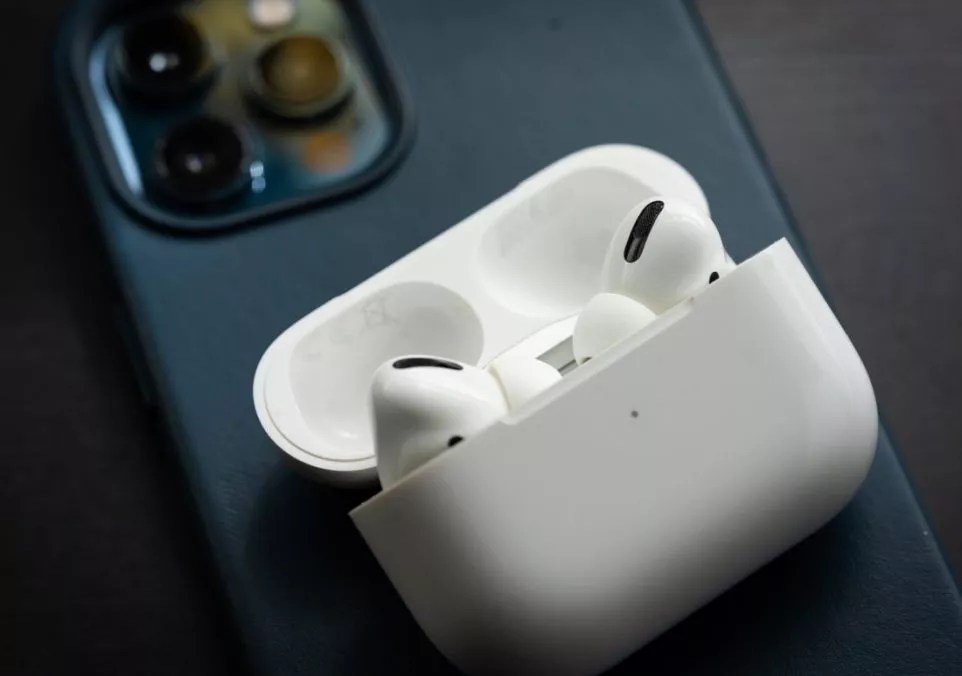
Your AirPods Pro (1st Gen) are more than just earbuds; they're your gateway to calls, music, and focused work. When they act up, it's incredibly frustrating. This comprehensive guide on AirPods Pro (1st Gen) Troubleshooting & Support is designed to help you quickly diagnose and fix the most common issues, getting you back to seamless audio without a hitch. We’ll cut through the confusion, offering clear, actionable steps that empower you to resolve problems from connectivity woes to sound glitches and charging snags.
At a Glance: Quick Fixes for Your AirPods Pro (1st Gen)
Before diving deep, here are some rapid-fire solutions that often do the trick:
- Reset Your AirPods: The ultimate go-to for many problems. Place AirPods in the case, hold the back button until the light flashes amber, then white.
- Toggle Bluetooth: Turn Bluetooth off and on again on your connected device.
- Clean Everything: Ear tips, speaker meshes, microphone ports, and charging contacts. Debris is a common culprit.
- Check Audio Balance: Ensure sound isn't inadvertently shifted to one ear in Accessibility settings.
- Update Software: Keep your iPhone/iPad/Mac's operating system (iOS/iPadOS/macOS) up to date. This also updates your AirPods' firmware.
- Try Different Ear Tips: For sound quality and comfort, a proper seal is crucial. Use the Ear Tip Fit Test.
The Foundation: Understanding Your AirPods Pro (1st Gen)
Your original AirPods Pro brought active noise cancellation (ANC), Transparency Mode, and adaptive EQ to the AirPods line. These advanced features, while fantastic, sometimes introduce unique troubleshooting scenarios compared to earlier generations. A solid understanding of how they're supposed to work is your first step toward fixing them when they don't.
Most issues boil down to one of three categories: connectivity, audio, or power. We'll tackle each methodically, helping you isolate the problem and apply the right solution.
When Connection Fails: Pairing, Disconnecting, and Unresponsiveness
Nothing's more annoying than your AirPods Pro refusing to connect or randomly dropping out. These issues often stem from software glitches or Bluetooth interference.
Your AirPods Pro Won’t Connect
This is arguably the most common and frustrating problem. If your AirPods Pro aren't showing up or connecting to your iPhone, iPad, or Mac, here’s the game plan:
- Bluetooth On/Off Cycle: Start simple. Go to your device's Settings > Bluetooth, toggle Bluetooth off, wait 5-10 seconds, then toggle it back on. Often, this re-establishes the connection.
- Forget and Re-pair: This is a more aggressive reset of the connection.
- Place both AirPods Pro in their charging case and keep the lid open.
- On your iPhone/iPad, go to Settings > Bluetooth.
- Tap the "i" icon next to your AirPods Pro in the device list.
- Select "Forget This Device" and confirm.
- Close the lid, wait 15 seconds, then open it.
- Hold the setup button on the back of the charging case for about 15 seconds, until the status light flashes amber, then white.
- Bring the open case close to your iPhone/iPad. A setup animation should appear. Follow the on-screen instructions to re-pair them.
- Update Your Device's Software: Outdated iOS, iPadOS, or macOS can cause compatibility hiccups. Ensure your device is running the latest available version. AirPods firmware updates are automatically delivered when your AirPods are connected to a charger near an iPhone with the latest OS.
- Check for Interference: Other wireless devices (Wi-Fi routers, smart home gadgets, other Bluetooth accessories) can sometimes interfere with your AirPods Pro's Bluetooth signal. Try disconnecting other Bluetooth devices or moving to a different location to see if the problem resolves.
- Mac-Specific Note: If you're connecting to an older Mac and also using a Bluetooth mouse, sometimes the Mac prioritizes the mouse connection. Try disconnecting and reconnecting your AirPods Pro via System Preferences > Bluetooth directly, rather than just toggling Bluetooth globally.
AirPods Pro Disconnect Randomly
It's the middle of a podcast, and suddenly, silence. Random disconnections are often frustrating, but usually fixable:
- Full AirPods Reset: Just like with connectivity issues, a full reset can clear underlying glitches causing instability. Follow the "Forget and Re-pair" steps above.
- Reset Network Settings (iPhone/iPad): This will reset all network-related settings (Wi-Fi passwords, cellular settings, VPN settings, and Bluetooth pairings). It can often clear persistent connection bugs. Go to Settings > General > Transfer or Reset iPhone > Reset > Reset Network Settings. You'll need to re-enter Wi-Fi passwords afterward.
- Check Battery Levels: Low battery, especially in one AirPod, can sometimes lead to unexpected disconnections or uneven audio. Check the battery status via the battery widget on your iPhone or by opening the case near your iPhone.
- Firmware is Key: Ensure your AirPods Pro firmware is up-to-date. This usually happens automatically when they're in their case, charging, and near an iPhone connected to Wi-Fi. You can check your firmware version by going to Settings > General > About > AirPods (when connected).
Automatic Switching Not Working
AirPods Pro are designed to seamlessly switch between your Apple devices (iPhone, iPad, Mac, Apple Watch) when signed into the same Apple ID. If this isn't happening:
- Verify Apple ID: All your devices must be signed into iCloud with the exact same Apple ID. A mismatch will prevent automatic switching.
- Update All Devices: Automatic switching requires iOS 14/iPadOS 14/macOS Big Sur or later. Ensure all your devices are on the latest compatible operating systems.
- Enable the Feature: On your iPhone/iPad, go to Settings > Bluetooth, tap the "i" next to your AirPods Pro, then tap "Connect to This iPhone." Choose "Automatically."
- Temporary Manual Switch: If the automatic switch is being finicky, you can always switch manually. On an iPhone/iPad, tap the AirPlay icon in Control Center. On a Mac, click the volume icon in the menu bar and select your AirPods Pro.
Sound Troubles: Low Volume, Distortion, and One-Ear Wonders
Sound quality is paramount for AirPods Pro. When it falters, whether it's low volume, crackling, or only one AirPod working, it directly impacts your experience.
Low or Distorted Sound Quality
The original AirPods Pro, in particular, were known for some sound quality issues, including crackling or static, which Apple addressed with an extended service program for eligible units manufactured before October 2020. Even if not covered by that program, other factors can cause similar issues.
- The Ear Tip Fit Test (Crucial for Pro Models): The AirPods Pro's ANC and sound quality heavily rely on a good seal in your ear canal.
- Try all the included silicone ear tip sizes (Small, Medium, Large).
- With your AirPods Pro in your ears, go to Settings > Bluetooth > "i" next to your AirPods Pro > Ear Tip Fit Test.
- Follow the on-screen instructions. If it suggests a different size, switch it out. A "Good Seal" is vital.
- Clean Speaker Meshes and Ear Tips: Earwax, dust, and debris are the most common culprits for muffled or distorted sound.
- Gently remove the silicone ear tips. Rinse them with water (no soap) and let them dry completely before reattaching.
- Using a dry, soft-bristled toothbrush or a lint-free microfiber cloth, carefully brush away any debris from the speaker mesh on the AirPods Pro itself. A small cotton swab can also help get into crevices. Never use sharp objects or excessive liquid.
- Check for "Crackling or Static" Service Program: If your 1st Gen AirPods Pro are experiencing consistent crackling, static, or ANC issues (especially if manufactured before October 2020), they might be eligible for Apple's service program. Check Apple's support website or contact Apple Support directly.
- Turn Off Other Bluetooth Devices: Reduce potential interference by temporarily disabling Bluetooth on other nearby devices.
- Adjust EQ Settings (Music App): If music sounds off, check your iPhone's Music EQ. Go to Settings > Music > EQ. Try turning it off or selecting "Flat" to see if it improves.
- Toggle Automatic Ear Detection: While useful for pausing audio, sometimes this feature can cause stuttering or unexpected pauses. Go to Settings > Bluetooth > "i" next to your AirPods Pro > toggle "Automatic Ear Detection" off. Be aware this might affect battery life.
- Reset AirPods Pro: A full reset can sometimes clear internal audio processing glitches.
One AirPod Pro Not Working (or Low Volume)
When one AirPod decides to take a break, it's usually a fixable issue.
- Charge Both AirPods Fully: Place both AirPods Pro in the charging case, close the lid, and let them charge for at least 30 seconds. This ensures they both have sufficient power and reset their internal connection.
- Clean Charging Contacts: Debris on the metal contacts at the bottom of the AirPods stems or inside the charging case can prevent one AirPod from charging properly or making a good connection. Use a dry cotton swab or a soft, lint-free cloth to gently clean these points.
- Check Audio Balance: Accidentally shifted balance can make it sound like one AirPod is quieter.
- On iPhone/iPad: Go to Settings > Accessibility > Audio/Visual > Balance. Ensure the slider is centered.
- On Mac: Go to System Settings > Sound > Output, select your AirPods Pro, and check the balance slider.
- Perform a Full Reset: If none of the above work, a full reset and re-pairing of your AirPods Pro is the next step.
No Sound from Fully Charged AirPods Pro
If your AirPods Pro are charged but still silent:
- Check Volume Levels: On your connected device, ensure the volume isn't muted or extremely low. Sometimes the volume slider can be accidentally lowered.
- Reboot Your Device: A simple restart of your iPhone, iPad, or Mac can resolve temporary software glitches preventing audio output.
- Confirm Output Device: Double-check that your AirPods Pro are actually selected as the audio output device. On iPhone/iPad, check the AirPlay icon in Control Center. On Mac, check the volume icon in the menu bar.
- Test with Another Device: Try pairing your AirPods Pro with a different device (e.g., a friend's iPhone or another one of your devices) to see if the issue is with the AirPods themselves or your primary device.
Microphone Malfunctions: When No One Can Hear You
If people are complaining about your audio quality during calls or you can't activate Siri reliably, your AirPods Pro's microphones might be the issue.
- Clean Microphone Ports: The AirPods Pro have tiny microphone ports on the outside. These can get clogged with lint or debris. Use a dry, soft-bristled toothbrush or a cotton swab to gently clean them.
- Adjust Microphone Setting: Your AirPods Pro can use either the left or right AirPod's microphone, or automatically switch. Sometimes, locking it to one side can resolve issues if one mic is faulty.
- Go to Settings > Bluetooth, tap the "i" next to your AirPods Pro.
- Tap "Microphone."
- Change from "Automatically Switch AirPods" to "Always Left" or "Always Right." Test which one works better.
- Try One AirPod for Calls: Sometimes, simply taking a call with only one AirPod Pro in your ear can improve microphone performance, as it reduces potential interference from the other AirPod.
- Reset and Re-pair: This can clear software-related microphone glitches.
- Disable Automatic Ear Detection (Last Resort): In very rare cases, Automatic Ear Detection can interfere with microphone behavior. Turning it off (Settings > Bluetooth > "i" > Automatic Ear Detection) might help, but it will consume more battery.
Power Problems: Charging Issues and Battery Drain
Reliable charging and decent battery life are non-negotiable. When your AirPods Pro or their case aren't juicing up, it's time to troubleshoot.
AirPods Pro (or Case) Not Charging
This can manifest in a few ways: the case won't charge, or the AirPods themselves aren't charging while in the case.
Case Not Charging (Wired Lightning Port)
- Try a Different Cable and Adapter: The most common cause is a faulty Lightning cable or power adapter. Swap them out to test. Use an Apple-certified cable and adapter.
- Clean the Charging Port: Lint, dust, or debris can accumulate in the Lightning port on the bottom of the case, preventing proper contact. Use a non-metal, thin, pointy object (like a wooden toothpick) to gently scrape out any foreign material. Be careful not to damage the internal pins.
- Firm Surface for Charging: Ensure the charging case is on a flat, stable surface if you're experiencing intermittent charging.
AirPods Pro Not Charging in the Case
- Ensure Proper Seating: Make sure each AirPod Pro is firmly seated in its respective slot in the charging case. You should feel a slight magnetic click.
- Clean AirPods Contacts: Just like with sound issues, debris on the silver charging contacts at the bottom of the AirPod Pro stems can prevent charging. Use a dry cotton swab or soft cloth to clean them.
- Clean Case Charging Ports: Similarly, clean the charging contacts inside the case where the AirPods sit.
- Close the Lid: For AirPods Pro to charge, the case lid usually needs to be closed.
Wireless Charging Not Working (AirPods Pro Case)
The AirPods Pro (1st Gen) charging case supports Qi-certified wireless charging.
- Correct Placement: Ensure the charging case is centered correctly on your Qi-certified wireless charging pad, with the status light facing up. Reposition it a few times to find the sweet spot.
- Charging Pad Issues: Try a different wireless charging pad if you have one available. Ensure the pad itself is powered on and working.
- Remove Obstructions: If you have a thick case on your AirPods Pro charging case, it might interfere with wireless charging. Remove it temporarily to test.
No Charging Animation on iPhone
When you open your AirPods Pro case near your iPhone, you should see a pop-up showing battery levels. If this isn't appearing:
- Reopen the Lid: Close the lid, wait a few seconds, then reopen it while holding it close to your iPhone.
- Toggle Bluetooth: Turn Bluetooth off and on on your iPhone.
- Reset AirPods Pro: A full reset can help refresh the connection and animation trigger.
Understanding LED Indicators
The LED light on the front of your AirPods Pro charging case (for 1st Gen, this light is outside the case, indicating wireless charging capability) provides vital diagnostic clues:
- Flashing White: Ready to pair with a new device.
- Flashing Amber: A pairing error occurred, or you need to reset them.
- Solid Green: Fully charged (when AirPods are in the case, it shows their charge; when empty, it shows case charge).
- Solid Amber: Charging, or the case/AirPods have less than one full charge remaining.
- No Light: The case is out of power, or it's not in active use.
Bad Battery Life
While battery health naturally degrades over time, especially with ANC, sudden or drastically poor battery life merits investigation.
- Expected Battery Life (AirPods Pro 1st Gen): Up to 4.5 hours listening time (with ANC on), up to 3.5 hours talk time. With the charging case, you get over 24 hours of listening time.
- Solutions:
- Ensure Automatic Ear Detection is On: This feature pauses audio and puts your AirPods into a low-power mode when you take them out, saving battery. If it's off, they'll keep running. (Settings > Bluetooth > "i" > Automatic Ear Detection).
- Disable ANC/Transparency When Not Needed: While great, both modes consume more battery than "Off." If you're just listening in a quiet environment, switch to "Off" in Control Center or Settings.
- Monitor Charge Status: Avoid letting your AirPods Pro completely drain too often.
- Full Reset: If battery life is dramatically shorter than expected for both AirPods, a full reset can sometimes recalibrate the battery management system.
- Check Battery Health (Advanced): While iOS doesn't offer a direct "battery health" percentage for AirPods like it does for iPhones, consistently poor performance even after resets may indicate significant battery degradation, suggesting it might be time for service or replacement.
Comfort and Fit: When AirPods Pro Keep Falling Out
Unlike standard AirPods, the Pro models use silicone ear tips for a snug, noise-isolating fit. If yours are constantly falling out:
- Revisit the Ear Tip Fit Test: This is paramount for AirPods Pro. Use the Ear Tip Fit Test mentioned earlier (Settings > Bluetooth > "i" > Ear Tip Fit Test) to ensure you're using the correct size for each ear. It's common for your ears to require different sizes.
- Try Third-Party Tips: While Apple's tips are good, some users find better comfort and security with third-party foam or silicone ear tips available from accessory makers. These can offer a more customized fit.
- Proper Insertion Technique: Insert the AirPod Pro into your ear with the stem pointing downward, then twist slightly forward until it feels secure and creates a good seal.
Gesture Glitches: When Your Squeezes Don't Work
The AirPods Pro (1st Gen) use a force sensor on the stem for controls (squeeze once to play/pause, twice to skip, thrice to go back, long squeeze to toggle ANC/Transparency). If these gestures aren't responding:
- Clean the Force Sensor: Debris or moisture on the stem might interfere with the sensor. Gently wipe the stem with a soft, dry, lint-free cloth.
- Check Firmware: Ensure your AirPods Pro have the latest firmware, as gesture responsiveness can be improved with updates.
- Proximity to Device: Ensure your AirPods Pro are within a reasonable range of your connected Bluetooth device.
- Reset AirPods Pro: A full reset can often resolve software issues affecting gesture recognition.
- Accidental Triggers (e.g., long hair): If you're experiencing accidental pauses or mode changes, particularly if you have long hair or wear headgear, ensure nothing is brushing against the force sensor. There isn't a direct setting to disable force sensor gestures entirely, but ensuring a clean contact point can help.
General Care and Maintenance for Longevity
Proactive care is the best troubleshooting. Keeping your AirPods Pro clean and updated will prevent many common issues.
Cleaning Your AirPods Pro (1st Gen)
Regular cleaning is crucial for sound quality, charging, and hygiene.
- AirPods Pro: Gently wipe with a soft, lint-free cloth. You can slightly dampen the cloth with 70% isopropyl alcohol for disinfection, but avoid getting moisture into openings.
- Speaker Meshes and Microphones: Use a dry cotton swab or a soft-bristled, clean toothbrush to carefully brush away debris. A little compressed air (used sparingly and from a distance) can also help, but be cautious of damaging components. Never use sharp objects or excessive force.
- Ear Tips: Remove the silicone ear tips and rinse them with water. Let them air dry completely before reattaching.
- Charging Case: Use a soft, lint-free cloth to wipe the exterior. For the Lightning port, use a dry, non-metal object (like a toothpick) to gently remove lint. Clean the internal charging contacts with a dry cotton swab.
Keeping Firmware Up to Date
AirPods Pro firmware updates happen automatically when they are in their charging case, connected to power, and near your iPhone/iPad/Mac with an active Wi-Fi connection.
- To check your current firmware version:
- Connect your AirPods Pro to your iPhone/iPad.
- Go to Settings > General > About.
- Scroll down and tap on your AirPods Pro.
- Look for "Firmware Version."
- There's no manual way to force an update, but ensuring your device is up-to-date and your AirPods are regularly charged near it will ensure they get the latest software.
Preventive Measures
- Always Use the Case: Store your AirPods Pro in their charging case when not in use. This protects them, charges them, and helps prevent loss.
- Avoid Extremes: Keep your AirPods Pro away from extreme temperatures (very hot or very cold), which can damage batteries and electronics.
- Handle with Care: Avoid dropping them. While durable, repeated impacts can cause internal damage.
- Water Exposure: If your AirPods Pro get wet (they are water resistant, not waterproof):
- Immediately wipe them with a soft, dry cloth.
- Do NOT put them in rice – rice dust can get stuck in ports.
- Allow them to air dry completely for several hours (or even a day) before attempting to use or charge them again.
- If they still don't work, service or replacement may be needed.
Advanced Troubleshooting and When to Seek Help
Sometimes, a basic reset isn't enough, or you might need to find your misplaced earbuds.
Performing a Full AirPods Pro Reset
This is the most powerful troubleshooting step you can perform yourself, essentially returning your AirPods Pro to factory settings.
- Place AirPods in Case: Put both AirPods Pro in their charging case and close the lid.
- Wait 30 Seconds: Open the lid.
- Hold Setup Button: Press and hold the setup button on the back of the case for about 15 seconds. The status light on the front of the case will flash amber, then white.
- Re-pair: Bring the open case near your iPhone/iPad/Mac. A setup animation should appear. Follow the on-screen instructions to reconnect them. (For non-Apple devices, you'll need to manually re-pair via Bluetooth settings).
Finding Lost AirPods Pro
Apple's Find My app is your best friend when your AirPods Pro go missing.
- Last Known Location: The Find My app shows their last known location on a map.
- Play Sound: If they're nearby and connected, you can play a loud sound (individually for each AirPod Pro) to help you locate them. This sound gets progressively louder over two minutes.
- Offline Finding: With iOS 15 and later, AirPods Pro (1st Gen) can leverage the Find My network, allowing other Apple devices to anonymously detect their location, even if they're offline.
- Find My with AirPods Pro 2: While this guide focuses on 1st Gen, it's worth noting the 2nd Gen offers more precise finding for the case itself, which the 1st Gen does not.
Dealing with Counterfeit AirPods Pro
With iOS 16 and later, your iPhone can detect if you're attempting to connect counterfeit AirPods. If you see a warning like "These headphones could not be verified as genuine AirPods...," it means your iPhone has identified them as not being authentic Apple products.
- Your Choice: You can choose to ignore the warning and use them, but be aware they may lack features, have lower sound quality, inferior ANC, poor battery life, and potentially present security or privacy risks.
- Purchase Carefully: Always buy AirPods from Apple directly, an authorized Apple reseller, or a reputable retailer to avoid fakes.
When to Contact Apple Support
If you've tried all the troubleshooting steps above and your AirPods Pro (1st Gen) are still experiencing issues, especially concerning:
- Persistent Crackling/Static: Especially if your unit falls within the eligible serial number range for the Apple Service Program for AirPods Pro (1st Gen) Sound Issues.
- Complete Failure: No power, no sound, total unresponsiveness.
- Water Damage (after drying attempts): If they simply won't revive.
- Known Hardware Defects: If you suspect a physical defect.
You can check your warranty status via Apple Support's website using your serial number. For expert assistance, make an appointment with an Apple Genius Bar or contact Apple Support online or by phone. They have specialized diagnostic tools that can pinpoint hardware failures. For more comprehensive insights into your device, consider exploring All about AirPod Pro 1st generation.
By following these detailed steps, you'll be well-equipped to handle the most common issues plaguing your AirPods Pro (1st Gen), keeping your audio experience pristine and productive.